Category

Tutorials

How to use astercc script to configure HA and cluster call center

By | Tutorials | No Comments

High Available(HA):There are two servers of asterCC,master server runs all service(PBX,CTI,WEB,DATABASE) via virtual IP,the secondary server that can take over virtual IP from the master,it will work via virtual IP when the master is shutdown according to detecting the master by heartbeat IP。

The Configuration of Master/Slave Server

Information of Sample

Master Server

Service IP:192.168.1.120(Used in trunk and device registration)

eth0:192.168.1.234,this is primary IP of master server

eth0:1 ,the name of virtual NIC,it is disabled default

eth1:10.10.10.1,the heartbeat IP

Slave Server

eth0:192.168.1.235,this is primary IP of slave server

eth0:1 ,the name of virtual NIC,it is disabled default

eth1:10.10.10.2,the heartbeat IP

The Script file:clusterconf.sh

After configuring eth0 and IP,and finish the installation of AsterCC,then you should download and send the “identity” to support@astercc.org for obtaining authorization.We will configure them through clusterconf.sh. First,copy /opt/asterisk/scripts/astercc/clusterconf.sh to /root/ directory:

 cp /opt/asterisk/scripts/astercc/clusterconf.sh /root

Enter /root directory,and execute commands as shown below:

 cd /root
 chmod +x ./clustercc.sh

Select the type of configuration,input 1 means “HA”,as shown below:

ha_and_cluster01

Configure detailed parameters after press “Enter”,as shown below:

ha_and_cluster02

Input the parameters as the prompt of script above,press “y” if you confirm parameters above.

ha_and_cluster03

You will enter next step after inputing “yes” and the password of slave server twice,script continues to run automatically:

ha_and_cluster04

ha_and_cluster05

When script is finished,you should log on and shutdown the slave server,execute commands as shown below:

 shutdown -h now

Then reboot the slave server after the master server is restarted completely:

 reboot

Checking Database Configuration

You should log on two database servers separately,execute commands as shown below:

 show slave status \G;

As shown below,the values of “Slave_IO_Running” and “Slave_SQL_Running” are “Yes”,and others are normal.It is demonstrated the synchronization of database is available.

ha_and_cluster06Checking Configuration of Files Synchronization

Execute commands as shown below on Master server first:

 cd /home/ccsync && touch abc

Second verify the “abc” file existed or not(maybe there is a few seconds delay):

 ls /home/ccsync/abc

And then,remove the “abc” file on master server,and check the file whether was also deleted in slave server.

 rm /home/ccsync/abc

Last,test function of switching between master and slave server.

The Configuration of Cluster

Cluster:At least three servers running simultaneously,the master server run all services,include:PBX,CTI,database,WebService,slave server will run PBX,CTI,database backup,others run PBX and CTI.Although all of the servers run PBX and CTI simultaneously,they use one database,and same configuration of PBX and CTI.We can operate on master server,the database and web services supported to other servers via a virtual IP.The slave server will take over database and web services from master when master is abnormal.

Information of Sample

Master Server

eth0:Service IP:192.168.1.234 (Used in trunk and device registration).

eth0:1,the name of virtual NIC,this is primary IP of master server:192.168.1.120(used in database and web services).

eth1:10.10.10.1,the heartbeat IP.

Slave Server(backup server)

eth0:192.168.1.235 ,the primary IP of PBX service(Used in trunk and device registration).

eth0:1,the name of virtual NIC,it is disabled default.

eth1:10.10.10.2,the heartbeat IP.

Cluster Server

eth1:192.168.1.245,the NIC of PBX service.

The Script file:clusterconf.sh

After configuring eth0 and IP,and finish the installation of AsterCC,then you should download and send the “identity” to support@astercc.org for obtaining authorization.We will configure them through clusterconf.sh. First,copy /opt/asterisk/scripts/astercc/clusterconf.sh to /root/ directory:

 cp /opt/asterisk/scripts/astercc/clusterconf.sh /root

Enter /root directory,and execute commands as shown below:

 cd /root
 chmod +x ./clustercc.sh

ha_and_cluster07

Select the type of configuration,input 2 means “Cluster”,as shown above:

Input the parameters as the prompt of script above,press “y” and “Enter” if you confirm parameters above.Then,you will enter next step after inputing “yes” and the password of slave server twice,script continues to run automatically:

ha_and_cluster09

Press “Enter” after inputting the possword of slave server twice,as shown below:

ha_and_cluster010

ha_and_cluster011Press “Enter” to continue the configuration automatically,as shown below:

ha_and_cluster012

ha_and_cluster013

So far,the configuration is finished.After the script is finished,log and shutdown the slave server and other servers that running PBX service only:

 shutdown -h now

And then reboot the master server,execute command as shown below:

 reboot

Then poweron the slave server and other servers after the master server is restarted completely.

Checking Database Configuration

You should log on two database servers separately,execute commands as shown below:

 show slave status \G;

As shown below,the values of “Slave_IO_Running” and “Slave_SQL_Running” are “Yes”,and others are normal.It is demonstrated the synchronization of database is available.

ha_and_cluster014Checking Configuration of Files Synchronization

Execute commands as shown below on Master server first:

 cd /home/ccsync

Second verify that the “abc” existed or not(maybe there is a few seconds delay):

 ls /home/ccsync/abc

And then,remove the “abc” file on master server,and check the file whether was also deleted in slave server.

 rm /home/ccsync/abc

Last,test function of switching between master and slave server.

How to implement after call survey

By | Tutorials | No Comments

In asterCC system,there is a default IVR of after call survey for agent,but that’s a Chinese version,so we should create a new one to implement the survey function.

default_after_call_ivr

Upload Announcements

We need upload the announcements which will be used in IVR after hung up,for example:“Please make an evaluation for the service….” “Welcome to call us anytime…” and so on.

On the [Advanced]→[Announcements] page,you can upload announcement via click the [Add] button,as follows:

add_announcements01

Add IVR of After Call Survey

Press the [Advanced]→[IVR] on the left menu to enter the IVR adding page,you can create a new IVR via clicking the [Add] button,as follows:

create_a_new_ivrAdd the Answer Action

Add the first action,this action is an Answer action,as follows:

add_answer_action01Add the ReadData Action

Then add the second action whose action is ReadData,add the Announcement which we uploaded into it,to prompt the customer enter the evaluation IVR,as follows:

add_readdata_action01Add the Webservice Action

Last action but not the least,as we use the webservice in asterCC system,so fill the blanks with specific content as follows:

  • add_webservice_action01WS Address:https://127.0.0.1/agentcallrate.php?wsdl
  • WS Function:saverate
  • WS Param:AGENTNO|TEAMID|AGENTGROUPID|sessionid|inputcode|callerid|MODELTYPE|MODELID


Add the Failed Transfer

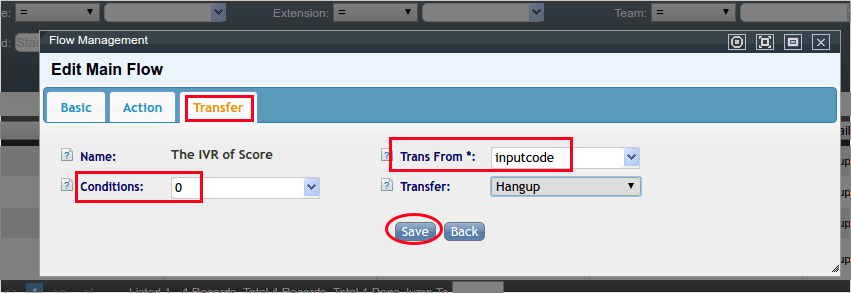
The Conditions’ value in transfer isn’t the score for agent,it is the return parameter of webservice.

The first condition is 0:

add_failed_transfer01Add the Success Transfer

The second condition is 1:


add_success_transfer01

Assign the IVR to Queue

Double-click the [Advanced]→[Rate Announce] under [Advanced]→[Queues] directory,as follows:

assign_the_ivr_to_queue01

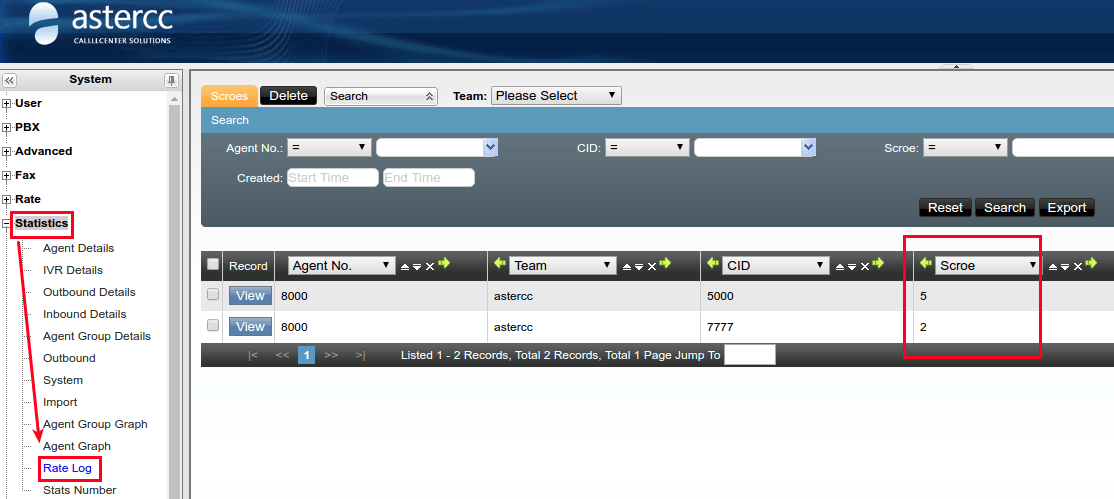
You can enter the [Statistics]→[Rate Log] directory below to evaluate agent:

to_evaluate_agent

how to add g729 codec support

By | Tutorials | No Comments

add g729 codec support

1. download the codec so file based your CPU, the linux command is for 32bit linux

wget https://asterisk.hosting.lv/bin162/codec_g729-ast16-icc-glibc-pentium4.so

for 64bit linux

https://asterisk.hosting.lv/bin162/codec_g729-ast16-icc-glibc-x86_64-pentium4.so


2. copy the .so file to asterisk lib folder for 32bit linux

mv ./codec_g729-ast16-icc-glibc-pentium4.so /usr/lib/asterisk/modules/


for 64bit linux


mv ./codec_g729-ast16-icc-glibc-x86_64-pentium4.so /usr/lib/asterisk/modules/

or

mv ./codec_g729-ast16-icc-glibc-x86_64-pentium4.so /usr/lib64/asterisk/modules/


3. load the codec

for 32bit linux


asterisk -rx "module load codec_g729-ast16-icc-glibc-pentium4.so"


for 64bit linux


asterisk -rx "module load codec_g729-ast16-icc-glibc-x86_64-pentium4.so"


system is supposed to give

Loaded codec_g729-ast16-icc-glibc-pentium4.so

or

Loaded codec_g729-ast16-icc-glibc-x86_64-pentium4.so

4. confirm

asterisk -rx "core show translation"


if you could read number under g729 column, it means your system support g729 codec now

5. auto-load

echo "load => codec_g729-ast16-icc-glibc-pentium4.so" >> /etc/asterisk/modules.conf


or

echo "load => codec_g729-ast16-icc-glibc-x86_64-pentium4.so" >> /etc/asterisk/modules.conf


How to upgrade to asterCC 1.2-beta

By | Tutorials | No Comments

Go to system modules, when there’re new modules or upgrades, it will give “DOWNLOAD” or “INSTALL” button

click the DOWNLOAD button, copy the download url

login to system via ssh, go the astercc upgrade directory, like /var/www/html/asterCC/data/_cache, use wget to download the package

you can also download the package on your pc first, then upload the the directory

refresh system moduels page, you will see UPGRADE button

Click OK to start upgrade, during  UPGRADING, system service may stop

Because in 1.2-beta, assterCC use a new nginx module, so you need upgrade nginx from ssh, copy the command we will use

Login from ssh, run the command, please make sure the server gets internet access, or else it could not upgrade

when it’s finished, you will see

refresh the system modules page, you will see now it’s latest version


config trunk and failover trunk in asterbilling

By | Tutorials | No Comments

in the new asterbilling, we provide a reselleroutbound.agi, so you can specific different reseller use different trunk (ex. each reseller use a account in a2billing), and you can config a failover trunk for the reseller.

Howto::

a) in your asterisk, add a context in your dialplan for reselleroutbound.agi, in directory scripts, we also provided a conf file named “extensions_astercc.conf”, [asterbilling- outbound] is the context for reselleroutbound.agi, if you have installed astercc via the shell script install.sh, this conf file will be moved to your asterisk etc folder, and add a new line in your extensions.conf  “#include extensions_astercc.conf”, now you can use [asterbilling-outbound] as the context for asterbilling, if you are using asterCC-Box, it’s configed already. If you installed astercc manually, you would like to copy  extensions_astercc.conf  to asterisk etc folder(usually it’s /etc/asterisk ), and add the include line in your extensions.conf (#include extensions_astercc.conf, if it’s a system based freepbx, please add this line to /etc/asterisk/extensions_custom.conf)

extensions_astercc.conf

extensions_astercc.conf

b)config the trunk for reseller

reseller_trunk1

when clid dialout, it’ll use turnk1 first and if  dail failed, it’ll try to dial by trunk2

There are three type of trunk: auto,default and customize

auto:reselleroutbound.agi don’t proccess anything,and  goto next step of context

default:your can select a default trunk that set in [resellertrunk] segment asterbilling.conf.php,  could be set tow default system trunk:

[resellertrunk] trunk1_type = sip
trunk1= reselleroutbound1
trunk2_type = sip
trunk2= reselleroutbound2

customize:add new trunk for this reseller,should click “reload” button to generate asterisk conf file when saved trunk infomation

reseller_trunk2en

when you add the trunk for the first time, when you reload, if will have two conf file: sip_astercc_registrations.conf  and  sip_astercc_trunks.conf , if you are not using astercc-box, please include these files to your sip.conf(for freepbx based system, please add  #include sip_astercc_registrations.conf to /etc/asterisk/sip_registrations_custom.conf, and add #include sip_astercc_trunks.conf  to /etc/asterisk/sip_custom.conf, and then do sip reload in asterisk , for the next time you add trunk, just need click the “reload” button.

A Sonicwell Product · Also: CXMind AI · WCC Contact Center