

we released this rc1 to fix the following bugs: 1. astercctools bug: when using max_dialer_child, it would not control the number it dials for a predictive dialer campaign. 2. astercc: takes too much cpu so when upgrading from 0.21 to 0.21-rc1, just replace astercc and astercctools under /opt/asterisk/scripts/astercc

a instruction about how to Integrate Your Own Web Popup with Astercrm / asterisk
asterCC and asterCC-BOX released version 0.21 asterCC BOX:
- upgrade freepbx to 2.9.0
- upgrade asterCC to 0.21
- released 64 bit ISO
asterCRM 0.076 in asterCC 0.21:
- added check csv file if the utf-8 code when import
- added billing for campaign
- added auto popup the latest and top priority notes
- improved open_new_window to internal,external and both in astercrm.conf.php
- added require_reason_when_pause (yes|no) in astercrm.conf.php
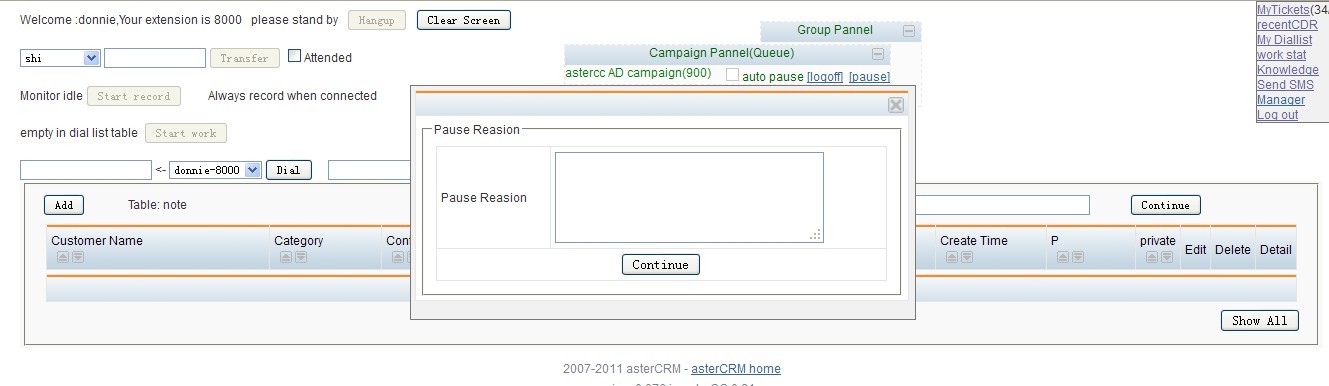
- added agent_queue_log to record agent pause and continue logs
- added a socket method to send calling info (added enable_socket,fix_port and socket_url in astercrm.conf.php)
- added first_name and last_name in customer table
- improved include customer info when export dialedlist (added export_customer_fields_in_dialedlist in astercrm.conf.php for assign exported fields)
- added create_ticket in astercrm.conf.php to control the privileges when create ticket
- added popup ticket notice in portal page
 asterBilling 0.16in asterCC 0.21 :
- added the options display ‘all’ or ‘answered’ in cdr page
- added booth_cdr_order in asterbilling.conf.php to determine order of showing cdr in booth
- improved both hangup channels of caller and callee when click to hanguup in portal page
- improved recharge by paypal, remove process balance in pdt method, just in ipn method
- added the synchronization.pl for asteriblling synchronization solution
Log in the system page, enter the agent interface. Find the campaign pannel(Queue ) below the campaign corresponding to the queue number, and the two options, login, pause.

After elected “login”, then the current agent has been logged into the queue which belongs to the queue number, the queue was according to the state of all the agent be logged to assign the calls. After elected “pause”, then the agent has been logged are not be assigned phone calls whether he is busy or free. When elected logoff, the current agent were logged off from the queue, the queue will not assign any phone calls to the agent.
Return to the management interface, enter the dial list below campaign find the queue number corresponding to the campaign name, click on the campaign “edit” to open.

Find queue number, indicate the agent to be logged in the queue number; Queue Context, the crew used the queue context, freePBX use the latest version is the current from-queue; Use Extension Channel For Queue, where there are two cases. One case is logged in default, do not be checked before “Use Extension Channel For Queue”, in the asterisk CLI to perform queue show.

Another case is to use” Use Extension Channel For Queue”, checked before “Use Extension Channel For Queue”, in the asterisk CLI to perform queue show.

Back to the management interface, enter the extension to find the user name of current agent, click “edit”

Channel option, sip/8003, 8003 is the current agent extension.
1.Some dependencies error (1).configure: error: no acceptable C compiler found in $PATH Solution:apt-get install gcc (2).configure: error: C++ preprocessor “/lib/cpp” fails sanity check Solution:apt-get install g++ or apt-get install build-essential (3). configure: *** XML documentation will not be available because the ‘libxml2’ development package is missing. configure: *** Please run the ‘configure’ script with the ‘–disable-xmldoc’ parameter option configure: *** or install the ‘libxml2’ development package. Solution:install libxml2-dev doesn’t help,run ./configure '--disable-xmldoc' (4). configure: error: *** termcap support not found (on modern systems, this typically means the ncurses development package is missing) Solution:apt-get install ncurses-dev (5). [FATAL] PEAR must be install (reauires DB.php). Include path: .:/usr/share/pear:/usr/local/src/PEAR Solution:pear install db 2.Unknown SQL engine Problem:After installing the FreePBX,admin page show the following message: FATAL ERROR Unknown SQL engine: [] Trace Back /var/www/html/admin/common/db_connect.php:57 die_freepbx() [0]: Unknown SQL engine: [] /var/www/html/admin/bootstrap.php:75 require_once() [0]: /var/www/html/admin/common/db_connect.php /var/www/html/admin/config.php:61 require()
[0]: /var/www/html/admin/bootstrap.php
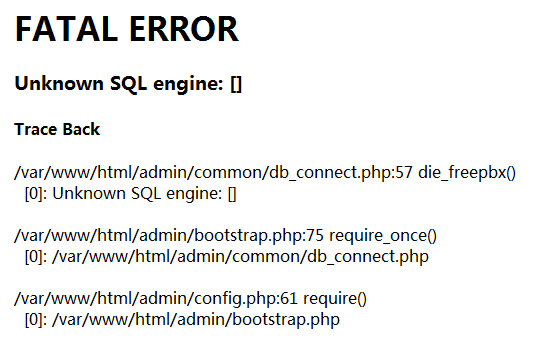 Solution:
 vi /etc/apache2/httpd.conf default it’s a empty file,add two lines User asterisk Group asterisk Restart apache service. /etc/init.d/apache2 restart 3.Softphone registration error Problem:After adding Extensions in FreePBX,soft phone can’t register extensions. 
 Solution: Log in your asterisk (
asterisk -r) and press sip show peers,if no such command, run module load chan_sip.so,load the sip module. Restart the asterisk service. core restart now If nothing changes,maybe firewall blocks asterisk,you should disable the firewall and prevent it from starting on reboot. iptables -F chkconfig iptables off 4.Soft phone can’t connect to eachother Problem:Softphone can register freepbx extensions but can’t connect to eachother. 
 Log in your asterisk (
asterisk -r),when soft phone registering,asterisk show error: chan_sip.c:8876 process_sdp: No compatible codecs, not accepting this offer! Solution: Make sure that you have selected a-law or u-law in soft phone selected codecs 
 or select the proper codecss in a FreePBX EXTENSION configuration.
1.Unknown SQL engine
Problem:After installing the FreePBX,admin page show the following message:
FATAL ERROR
Unknown SQL engine: []
Trace Back
/var/www/html/admin/common/db_connect.php:57 die_freepbx()
[0]: Unknown SQL engine: []/var/www/html/admin/bootstrap.php:75 require_once()
[0]: /var/www/html/admin/common/db_connect.php/var/www/html/admin/config.php:61 require()
[0]: /var/www/html/admin/bootstrap.php
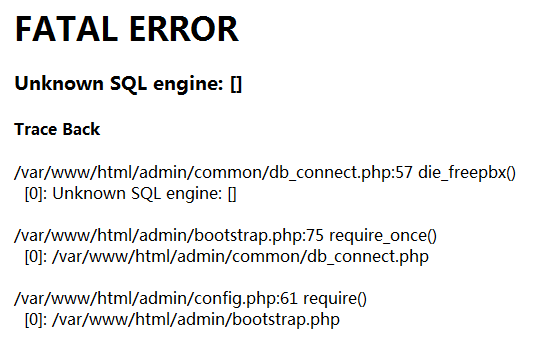
Unknown SQL engine
Solution:
vim +231 /etc/httpd/conf/httpd.conf
change User apache and Group apache to User asterisk and Group asterisk.
vim +327 /etc/httpd/conf/httpd.conf
change None to All.
or use sed to replace.
sed -i '231,232s/apache/asterisk/i;327s/none/All/i' /etc/httpd/conf/httpd.conf
Restart apache service.
service httpd restart
2.Asterisk is not running,
Problem:After installing the FreePBX,the Server Status Panel of admin page show the following message:
Asterisk ERROR
Asterisk is not running, this is a critical service!
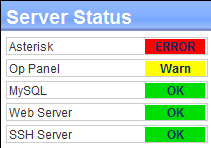
asterisk error
Solution:
vim +$ /etc/asterisk/manager.conf
Press dddd to delete the last two lines and press ZZ to save&quit.
or use sed to delete the last line twice.
sed -i '$d' /etc/asterisk/manager.conf
sed -i '$d' /etc/asterisk/manager.conf
Restat the asterisk service.
service asterisk restart
3.Softphone registration error
Problem:After adding Extensions in FreePBX,soft phone can’t register extentsions.

Zoiper Registering

eyeBeam Registering
Solution:
Log in your asterisk (asterisk -r) and press sip show peers,if no such command,
run module load chan_sip.so,load the sip module.
Restat the asterisk service.
core restart now
If nothing changes,maybe firewall blocks asterisk,you should disable the firewall and prevent it from starting on reboot.
service iptables stop
chkconfig iptables off
4.Soft phone can’t connect to eachother
Problem:Softphone can register freepbx extensions but can’t connect to eachother.

Zoiper Wrong Codecs

eyeBeam Wrong Codecs
Log in your asterisk (asterisk -r),when soft phone registering,asterisk show error:
chan_sip.c:8876 process_sdp: No compatible codecs, not accepting this offer!
Solution:
Make sure that you have selected a-law or u-law in soft phone selected codecs

Zoiper Selected Codecs

eyeBeam Selected Codecs
or select the proper codecss in a FreePBX EXTENSION configuration.
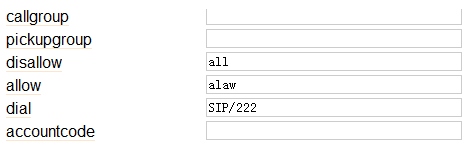
FreePBX Extensions Codecs
Log in system and enter the agent interface, if the dial list of agent interface have no data, the “start work” function is forbidden.

Dial list exists phone number, the “start work” can be used properly. The phone number in dial list can be added manually or through batch import entry. Make the dialnumber in dial list, agent can click on “start work” to call outbound.
Click the “Start work”, the system will be calling dialnumber in the dial list one by one, at the moment the window about information will pop up, such as “input customer information”, “add records” pop-up window.

When the call is connected, the agent can communicate with customers to get the information input, the upper left corner points out the system is recording. After the call, click on the “hang up”, then the system will turn into count down and dialing the next dialnumber automatically.

Agent can set time in count down optionally, go into extension in management interface, find the editor belongs to user name,click and pop up a window says “Edit Account”

Find “dial interval”, setting“0”, the system default countdown in 30 seconds, setting greater than “0”, according to the number as the seconds of countdown. There are two or more than two dialnumbers in dial list will turn up count down, only one dialnumber can not be.
Agent can also stop work at any times as condition change, then the system will no longer auto-dial the dialnumber from dial list in agent interface.

Into the system management interface, find the import function,enter.
 Choose file
Choose file to upload, you can browse the files you want, or you can choose an existing file, then upload it. After successful upload, the data you want will upload to the system, then you can select the form, specify the data into the appropriate form.

Select customer, there will be corresponding to the fields of this form.
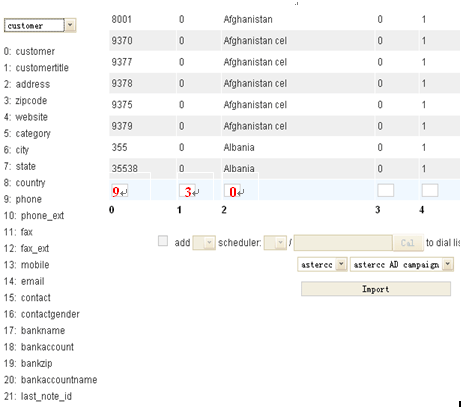
According to the data appear in front of several pieces of information, each vertical line corresponding to one information, information corresponding to the field appears to the left and the fields of the code will fill in the information at the bottom of the box.

Next, you must tick before “add” , and the data adding to the dial list at the same time, select the number corresponding to the phone, select the outbound time, if you want to be evenly distributed to agent, then you do not tick before “assign”, if you want a agent assigned to a designated, tick in front of the “assign”, and noted the number of the agent, if you want to assign two or three agent you can with “,” separated. Choose your campaign, and click Import.
Before importing, when you make the phone number that will be imported to assign to a designated agent, then after importing is completely, return to the agent interface, you will find all the phone numbers waiting to be dialed in the dial list.

If you do not want to assign these phone number to a designated agent, you do not have to tick before “assign”, return to the agent interface, you will find there is not any date in the dial list from agent interface.

then all date have been imported will be found in dial list, the system do not assign to any agent.

dial list
Then you go back to “customer” page, you will find all the data has been imported successful in your customer data sheets, and all information corresponding to each field in form. At the same time, dial list also appear to all the same data has been imported, according to the dialing time to go to dial the number.
Open login screen, enter the correct user name and password to submit into the management interface. Choose “dial list”, create a new campaign, click to campaign and then select the “Add” button. Pop-up a list box about add campaign, according to your demands to fill the information completely. 
Add Campaign
Under the toolbar you will find Campaign Result, add. 
Arrow points to the Campaign Result
Then it will pop up a window of Campaign Result  You can set up by yourself according to your own business maybe used in result name, it can be refused access, voicemail, dead number or other such results. The campaign name you can choose the campaign that you have established just now, or you may also specify the choice plan. Back to agent began to call the number from dial list, add a phone number
  Arrow points to add a phone number to dial list, fill in the information completely, continue. You can also choose to bulk import, in order to import the phone number into dial list. When the call is connecting, the screen will pop up a window for agent to record the customer information. According to call ends the agent may choose the call result setting up before corresponding to the state. Then click Update. System prompted to update successfully.
  Right now you go back to see the dialed, you will find the results of a column in the Campaign Result information displayed. Allow you clearly to see the result of customer in the form of campaign result.
  Then let we see the dailed, the system will prompted the call is answered or no answer, which results in the campaign result will be prompted to the form or how about answer and no answer. Management will consider screening out potential customers in its next outbound, object among those empty number, wrong number or do not want to keep the number of filtered out. First, we find the search option to open the drop-down list, find the campaign result, input you want to keep in the back of the results, for example, you want to keep “refuse”or “voicemail,” enter the appropriate results, and select Options – “recycle”, so that these dailed numbers will be present to dail list again.
  The numbers be recycled will present to dial list once again.
  With this method, you may also filter out the wrong number or dead number to delete. In this way, the dail list will save those numbers that you have already recycled unsuccessful once more, to make the next dial-up, to keep more potential customers.
“Use astercc systems enable us to bid farewell to original one hand phone one hand record of all the traditional mode, and fundamentally improved customer service, just click on a “start” button and it is automatically set number, then screen out the customer information and contact information, and the main content of the conversation will be kept in the system, to pay a visit after return.Customer are satisfied with the system, efficiency upgrading and the work becoming more and more relaxed”
——from the evaluation of one client
Project Background
D-NOTICE ENTERPRISE MANAGEMENT CONSULTANT CO,LTD in shijiazhuang was established by 2009, one company that work for all enterprise and public institution and provide business processes outsourcing (BPO) and institutions overall outsourcing service of professional service management vendors. The company mainly develop IT project research and development, call center outsourcing, customer service management and process management and process of recycling outsourcing service products. In technical research mainly aim at the various of needs in call center and analysis and design to satisfy all kinds of needs in call center. In leading the technology, high quality services to develop into two major call center at the base, a product development center of corporate framework. The service incorporate management system and advanced technique to develop its strengths with Baidu China, zhejiang Dnnice group, China telecom, China Unicom, Hisense group, etc. for the establishment of the long-term stability of the partnership. astercc to make D-NOTICE become more strong. Make up for the shortages of previous system, maximize their enterprises and achieved a perfect combination technology. In the near future,D-NOTICE must be move towards to globalization、 collectivization enterprise, to develop into a comprehensive and diversified outsourced service provider.


click to view the live operation and interview about astercc
click to view astercc questionnaire system of call center
About asterCC
Modern call center, it is far more than handle incoming call and outgoing call, call center it is a technique. lie in making the calls more digitization, management and storage, search, etc. astercc collect all the advantages of comprehensive, full operation,achieve the least workload the highest efficiency.
Functional modules:
1、astercc can help you record every customer every time to speak, when a customer calling on the screen will turn up the customer information and communication history records.
2、astercc can design an interactive voice menu to provide one-stop information service.
3、astercc also offers professional questionnaire system and autodialer,open up a door in calls for you.
4、astercc automatically generates various of data reports, use of the report roll , you can soon analysis the pieces of information from thousands of conversation.
In addition, astercc also offers some utility tools, for example, setting and warning tasks, using the phone,message and email to promote and publicize, you may through the google map find the way or path, etc.

System management interface