

There’re some parameters in file astercc.conf for astercc daemons. We can change them to get a beter performance for asterisk billing. please note that u need to restart asterrc daemon to reload configration. refreshrate = 60 refreshrate is the seconds asterrc daemon reload data from database, when u change asterBilling setting a lot, like rate, clid … , u need this parameter, but once your system is stable, u can set it to -1, so that after asterrc load the data when it start, it would not read from database again and again. refreshlock = 30 The seconds we refresh data for astercclock to lock booth, or lock group, reseller. calculateallcdr = no when set to yes, asterrc will re-calculate all records with groupid =-1 or resellerid = -1 in mycdr table, this could be used when u want to calculate the CDRs with no billing . calculateoldcdr = no when set to yes, asterrc will re-calculate all records in mycdr table, this could be used when u want to calculate the history CDR. This could be used when your rate changed and you want to reset all credits. callbackbill = src ; src: bill src only ; dst: bill dst only ; both: both src and dst removeNonSysCDR = 0 ; if we need use asterrc to remove CDR with resellerid = -1 or groupid = -1 removeNoAnswerCDR = 0 ; if we need use asterrc to remove no answer CDR
asterBilling is a realtime billing software for asterisk. Through asterBilling, it’s very easy to build a hosted callshop solution for asterisk. benefits of asterBilling hosted callshop solution:
- reseller, callshop, customer three level billing
- all web based
- high performance
- all asterisk system compatible
here, i’ll introduce u how to build a hosted callshop solution using asterisk and asterbilling. 1. step1, install asterisk 2. step2, set trunk and dialplan in asterisk edit /etc/asterisk/sip.conf and add your trunk there 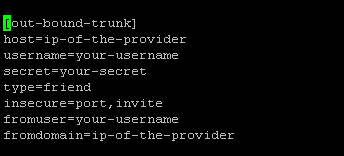 then set dialplan, go to /etc/asterisk/extensions.conf and add a context there
 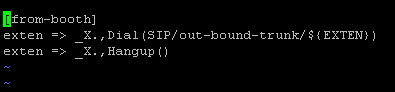 3. step3, install asterBilling 4. step4, check asterbilling.conf.php We need to modify asterbilling config file to meet our system, so check the “asterbilling.conf.php” in asterbilling folder, find section “sipbuddy” change context to be “context = from-booth”, so the sip peer generated by asterbilling will use context “from-booth” for outbound calls.
  * if you are using freepbx, you can use “context=from-internal” here, then it you can set outbound in your freepbx and all booth will use that. By default, asterbilling will generate all sip peers to the file “/etc/asterisk/sip_astercc”, you can change to other name if you want, or leave it blank if u dont want asterbilling generate the sip peers
  also we need to include the conf file in sip.conf so that asterisk could load peers asterbilling generated modify /etc/asterisk/sip.conf and add #include sip_astercc.conf
  5. step5, set resellers and groups 6. step6, add clid as reseller
  7. step7, set rates asterbilling provides three level billing: rate to reseller: the rate you sell to resellers rate to callshop: the rate resellers sell to callshops rate to customer: the rate callshops sell to customers 8. step8, login as groupadmin/operate check callshop interface
  9. step9, check reports
In asterCRM, we can set some description for a trunk or a DID, so that when customer dial in, we could know which number he dialed or which trunk he dialed from.  it’s very simple to set this, login as admin and go to management interface, select Trunkinfo, and then add the trunk or didnumber or both.
  this feature could be very useful for a virtual office, say you have some agent in the office, they answer phones for kinds of company, need to say different hello words for different company
You can import your data via web page in asterCC, in asterCRM, you can import customers, contacts and diallist, in asterBilling, you can import customerrate, grouprate and resellerrate, when import in asterCC, it will require you define how to map your data in excel/csv file to fileds in database.
say you have a rate table what to import as rate for callshop, filename is callshoprate.csv, the content is like
93,0,Afghanistan,0,1,14.5,60,1,2,15.03.08 18:22
9370,0,Afghanistan - Cellular,0,1,11,60,1,2,15.03.08 18:22
9379,0,Afghanistan - Cellular,0,1,11,60,1,2,15.03.08 18:22
35538,0,Albania - Cellular,0,1,10.5638,60,1,2,15.03.08 18:22
1. select your data file, asterCC support excel or csv format OR you can select a exsited file in your “upload” folderand then click “Upload”

then select callshoprate from the drop down menu on left

If this rate is for specific reseller/group, we can selec the reseller and group at the buttom, but here we leave is as “All”, means all groups in all reseller will use this rate by default
click “Import” to import the data, then u might get a Success prompt and see such page

if you only get 0 records from the message, go back and check if anything is wrong.
In astercrm, there’re some more options

asterrc is a billing script in asterCC package, together with astercc, asterrc could provide you the realtime billing feature to your asterisk system.
there’re some billing fields in table ‘curcdr’, they are
`credit` : credit by customer rate (rates in table ‘myrate’)
`callshopcredit`: credit by callshop (rates in table ‘callshoprate’)
`resellercredit`: credit by reseller (rates in table ‘resellerrate’)
`creditlimit`: if we have a creditlimit for this call, if it has once the ‘credit’ reach the number, the call would be hang up
`destination` : destination of the call, get from table ‘myrate’
`memo` : rate of the call, get from table ‘myrate’
asterrc daemon will maintain these fields during a live call, and we have same fields in table mycdr, so when a call is finished, we can also get the credit of the call.
Also, we have billing fields in table ‘clid’, ‘accountgroup’,’resellergroup’
`curcredit` current credit (works as a billing flag)
`credit_clid` total clid credit for the item
`credit_group` total group credit for the item
`credit_reseller` total reseller credit for the item
Here’s a example to show you how asterrc works
say we have defined a rate, we sell to reseller in 0.1 a minute, reseller sell to callshop in 0.2 a minute, and callshop sell 0.4 a minute to customer, when customer start a call, astercc will get the live CDR into table curcdr, and asterrc will put value 0.4, 0.2, 0.1 to fields ‘credit’, ‘callshopcredit’, ‘resellercredit’ when it’s the first minute, and then 0.8, 0.4, 0.2 when it’s the second minute …. when it’s 2 minutes and a half, customer hangup the call, then we get a record with billing message 1.2 in ‘credit’, 0.6 in ‘callshopcredit’, 0.3 in ‘resellercredit’, meantime fields in clid, accountgroup and resellergroup would be updated, credit_clid = credit_clid + 1.2, credit_group = credit_group + 0.6, credit_reseller = credit_reseller + 0.3.
field ‘curcredit’ is used to save credit for comparing with creditlimt, it is updated after a call is finished, if limit type is set and curcredit is greater or equal with the creditlimit, the call would be hangup, when clid/group/reseller charges, we set curcredit = curcredit – {fund charged} so that curcredit is less than creditlimit and calls can go out.
Say a reseller pay you 500 euro, and u set his limit type to prepaid, and creditlimit = 500, then it is curcredit = 0, limittype= prepaid, creditlimit = 500 in table resellergroup, then booths under this reseller start to call , curcredit will increase by resellerrate, when it reachs 500, all calls stoped, reseller comes to you and charge 2000 euro, here you have two options
1. set credit limit to 500+2000 = 2500, but not recommend, coz there’d no log for changing of creditlimit
2. charge 2000 to curcredit, then curcredit = 500-2000 = -1500, and this operation would be logged in credithistory, so that you can check the charge history of each customer.
Hope this could help you under stand how asterbilling works.
By default, astercc providers you 5 free simultaneous channels license, you can purchase more if need.
First, edit /opt/asterisk/scripts/astercc/astercc.conf which is in same folder with astercc daemons, go to section [licence], you can find three parameters there
[licence]
licenceto =
key =     (no this parameter in current version now)
channel = 5
change “channel” to the number of simultaneous channels you need, and “licence to” to the name of your organization, so now it looks like
[licence]
licenceto = my organization
key =
channel = 50
save and exit, then execute astercc script, you should get things like
[dev01 astercc]# /opt/asterisk/scripts/astercc/astercc
Invalid key, please contact the administrator
identity = b0a5ebca13556ca9ca91813dd88dfgd9
now send this identitykey and all content in licence section (licenceto and channel) to astercc, we’ll send you back the licence key, then update your astercc.conf with the licence key, restart astercc & asterrc daemons. If no error message output, your astercc support more simultaneous channels now.
for the latest version, we start to use a license file named ‘license.astercc'(64 bits), so after u get the license file, upload it to the same folder with your astercc daemons, usually it’s in
/opt/asterisk/scripts/astercc/
then restart astercc daemons
/opt/asterisk/scripts/astercc/asterccd stop
/opt/asterisk/scripts/astercc/asterccd start
if everything is fine, it should give no errors, then the channels now in astercc is the value you put after channel = in /opt/asterisk/scripts/astercc/astercc.conf
and use this command you can check if the license will expire some day
/opt/asterisk/scripts/astercc/astercc -h
0000-00-00 means never expire
and astercrm and asterbilling will share same license file, which means when you get the license, you can either use it for astercrm or asterbilling or both.
good luck!
In July, 2007, we start a project, the aim is to provide a call center system for asterisk, which should be all web based and no rely on dialplan, also should have some simple CRM features. That’s how asterCRM came, we made it all open source and free to use so that it could grow faster. On 2007-08-08, we released the first version, 0.01beta, then 0.01, 0.03, 0.04 … it upgraded almost every month. At the same time, we’d like to provide a realtime billing solution for asterisk, then we made tow daemons running in linux, astercc and asterrc, astercc could catch live CDR from asterisk and asterrc could bill based rate and destination. We found this billing solution is perfect for hosted callshop, then we released asterCC on 2008-3-5, asterCC means the core of the system is the astercc daemon. After asterCC released, we found that we could get a much better performance and much more features if we use astercc damon in asterCRM, then we start integrate astercc daemon into asterCRM, then we released 0.0461 and 0.047beta, so that asterCRM could work based astercc daemon smoothly. So for now, both the billing solution and the call center solution need astercc daemon, then we decide rename them and package both into one software, we use asterCC as the package name, asterCRM as call center solution as it was, and use asterBilling as the software for realtime billing. asterCC ——asterCRM ——asterBilling asterCRM and asterBilling are both open source software, but the point is that you have to purchase license to get more simultaneous channels support in astercc daemon, by default it provide 5 free license so you can experience how asterCRM and asterBilling works.
The scripts folder in asterCC package, it provides you several scripts, so here is what are they:
- astercc: the main daemon script in asterCC, it would run as a daemon when add “-d” parameter (astercc -d), astercc will connect to your asterisk via AMI, and catch all call events and put them into mysql database in realtime, so only astercc is running, all other functions would work.
- asterrc: a billing daemon, it would load rates to memory and when there’re new calls it would analyze the CDR based callerid and destnation then put the rate into database in realtime. It support three level billing, reseller, group, and customer. You need asterrc running when you want to bill your asterisk.
- astercclock: astercclock is used for billing as well, when there is no credit for customer/group/reseller/single call/callback it would cut the call, also if a callerid is blocked, the would also be hangup.
- astercctools: astercctools will put some useful data to database, like sip status and queue status
so you need astercc and astercctools running when it’s a call center application, and need astercc, asterrc, astercclock when it’s a billing application. In scripts directory, it also provide you some tools to control daemons above
- asterccd: start, stop or check astercc status(you can edit it to assign which daemon could be controled)
- asterccdaemon: a watch dog shell, put it to your cron job list so it would start astercc daemons when they dies(if it start by asterccd,then which daemon could be checked by it is same as which daemon could be controled by asterccd)
- Download and unzip the source
- Create the directories and move astercc daemon scripts:
- Create the MySQL database and table, asterCC need mysql 4.1 or above
- Update /etc/asterisk/manager.conf to enable Manager connections
- Modify /var/www/html/astercc/astercc.conf.php and /opt/asterisk/scripts/astercc/astercc.conf to fit your configration
- Start astercc daemons
- Set folder access
- Testing: browse to https://localhost/astercc
- Set your first booth
- go Reseller and add a reseller
- go Group add a group belong to the reseller
- go Clid add some clid for this group, then the account in asterisk with the clid would be billing as a user in this group
- go Account add a account, usertype could be groupadmin and belongs to the group you just added
- go Rate to Customer and add some rate for the group, if you dont select reseller or group, the rate could be the default rate all all resellers/groups
- login as groupadmin account, then you should see some box as the attachments.
- try make a call using the ip phone with the clid, you could see the calling and billing message in the box
cd /var/www/html
wget https://voxel.dl.sourceforge.net/sourceforge/astercc/astercc-0.09beta.zip
unzip astercc-0.09beta.zip
mv astercc-0.09beta astercc
mkdir -p /opt/asterisk/scripts/astercc/
mv /var/www/html/astercc/daemons/* /opt/asterisk/scripts/astercc/
chmod +x /opt/asterisk/scripts/astercc/astercc
chmod +x /opt/asterisk/scripts/astercc/asterrc
chmod +x /opt/asterisk/scripts/astercc/asterccd
mysqladmin -uyourmysqluser -pyourmysqlpasswd create astercc
mysql -uyourmysqluser -pyourmysqlpasswd astercc <sql/astercc.sql
Note: here we create the database named astercc, you could use whatever db name you want use your configration to replace yourmysqluser and yourmysqlpasswd
Note: asterisk and astercc could be on different server
Add something like this to the manager.conf file:
[general] enabled = yes
port = 5038
bindaddr = 0.0.0.0
;displayconnects = yes;the following line could be changed by yourself
[eventsdaemon] secret = myeventsdaemon
read = system,call,log,verbose,command,agent,user
write = system,call,log,verbose,command,agent,user
deny=0.0.0.0/0.0.0.0
; only allow local access, if you want to run astercrm on another server
; use your astercrm ip to replace 127.0.0.1 or add a new line
permit=127.0.0.1/255.255.255.0
/opt/asterisk/scripts/astercc/asterccd start
Note: If your astercc scripts in other directory,
you need to modify script path in CONFIGURATION SECTION of asterccd and asterccdaemon
to fit your script path (modify path of astercc,asterrc and asterccdaemon in asterccd;
modify path of asterccd and monitor log in asterccdaemon).Start astercc daemons when system startup:
Note: This option can only fit to redhat-release system.
If you want astercc daemons to start automatically when you boot your
machine, you need to :cp /opt/asterisk/scripts/astercc/asterccd /etc/rc.d/init.d
chmod 755 /etc/rc.d/init.d/asterccd
chkconfig –add asterccdAdvice: Configure your astercc restart once everyday, it’s not necessary, but it’s good for your astercc operation.
for example: you want to restart astercc at 0′clock everyday,just do the following line as root.
crontab -e
add a line:
0 0 * * * /etc/rc.d/init.d/asterccd restart
end of this file, the first ‘0’ figures minutes and the second ‘0’ figures hours.
chmod 777 /var/www/html/astercc/upload
browse to https://localhost/astercc
or https://YOUR-WEB-SERVER-ADDRESS/astercc
login with admin/admin