Monthly Archives

February 2011

multilingual telephone interpretation system solution

By | Regular functions in call center | No Comments

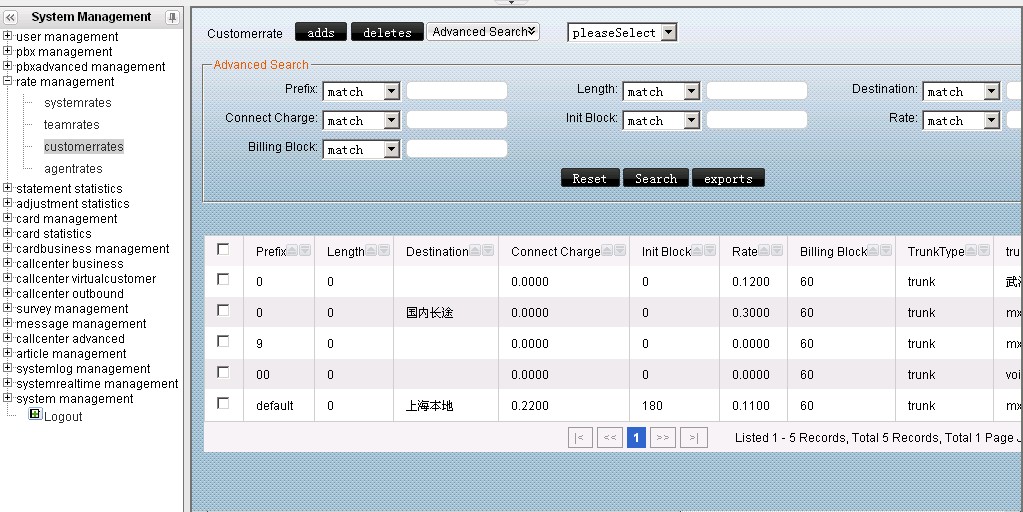
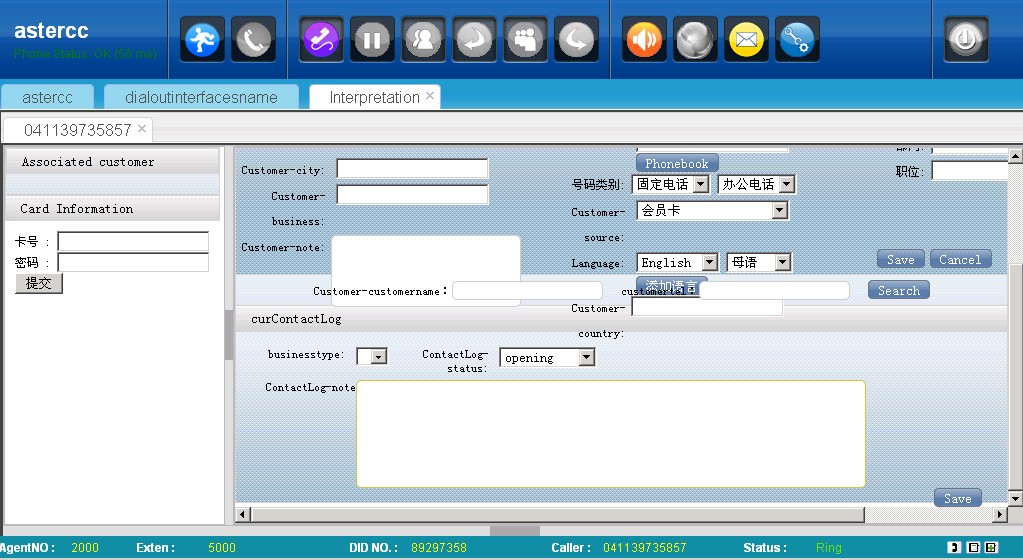
astercc provides a multi-way call system based asterisk, using this sytem, you could build a multilingual telephone interpretation system.

key features:

1. billing invoice

2. multi language IVR

3. calling card

4. part-time agent

5. different rate

6. low-cost (VoIP support)

7. web site integration

8. full conversation recording

9. multi-party conference

10. support reseller

11. detail report

12. inbound/outbound popup

user case:

1. https://www.callservice365.com

2. https://accesspath.com

asterCC released version 0.21 beta

By | Latest News | One Comment
  • [download#32#size]

asterCRM 0.075 in asterCC 0.21 beta:

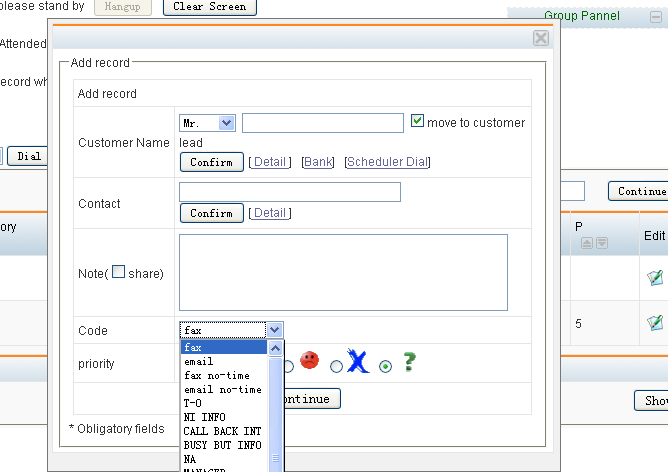
  • added customer_lead and note_lead
  • added defined code for note

  • added user online statistic and user online report

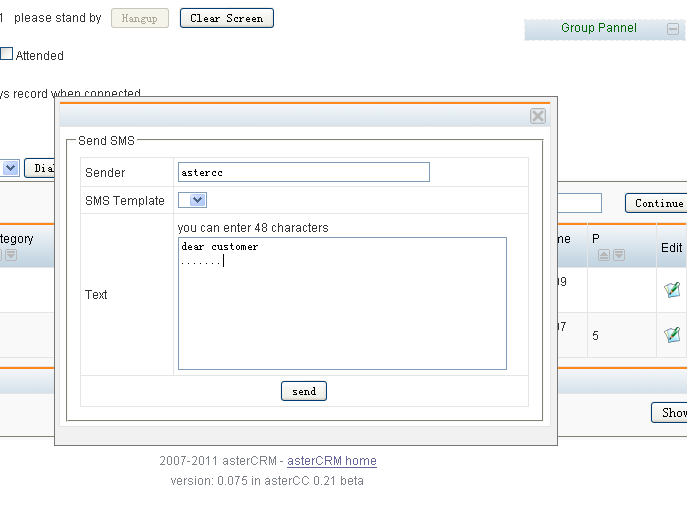
  • added sms api

  • added user type and user privileges

  • added attend transfer for agent mode
  • added hangupcause, hangupcausetxt and dialstatus to cdr table
  • fixed bug of astercc daemon works with asterisk 1.2
  • fixed bug of incorrect didnumber on agent mode
  • fieed bug of incorrect curcdr works with astercrm.agi
  • added doubleCheckCampaign in astercc.conf
  • added export data to daillist directly
  • added count and time of tranfer to cdr and dialedlist

asterBilling 0.15in asterCC 0.21 beta:

  • added pushcall mode(works with pushcall.agi)
  • added billing by accountcode mode
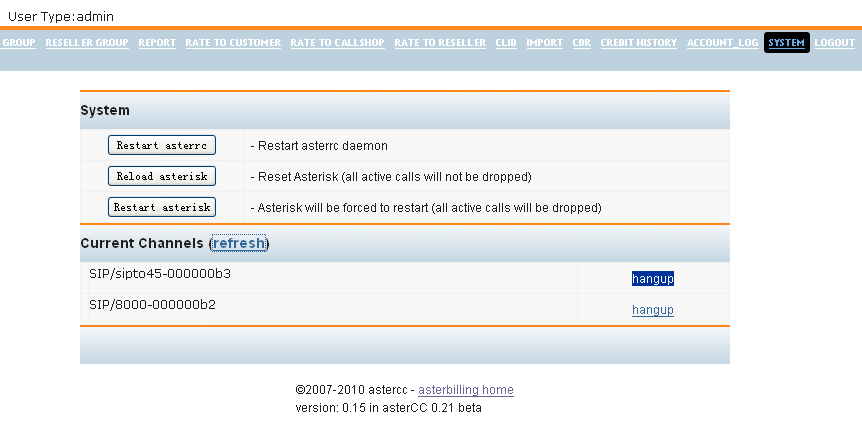
  • added query and hangup current channels in system page

how to use auto-recyle feature in a dialer campaign

By | asterCRM | No Comments

we have improved the auto-recyle feature in new version, now you could config auto-recyle by campaign.

auto-recyle is used to recyle the number from table campaigndialedlist to diallist, so system could re-dial customer phone in some conditions, it has the following parameters:

Max trytime:   the maximum time the dialer will try dial

Recyle time:   it will start recyle when “Recyle time” seconds after the call is done

Enable Auto Recyle:  set to “yes” if you want to enalbe auto-recyle

Min Duration:  number will be recyled  when the full duration is less than this value, this duration including ring time

Agent Answer Min Duration:  number will be recyled  when agent talking time is less than this value

Customer Answer Min Duration:  number will be recyled  when customer answering time is less than this value

* number will be recyled only when it meets all conditions above

tutorial: use astercc,freepbx and asterisk to build a broadcasting system with IVR and Queue agents

By | asterCRM | No Comments

the most feature in astercc is the predictive dialer, using the dialer you could improve the work efficiency. In this tutorial, I will introduce how to setup a dialer with a pre-configed IVR:  when dialer start work, customers will hear a IVR which you configed in Freepbx, so we could also config in the IVR to accept customer input, and we can forward to an new IVR or agents in a queue.

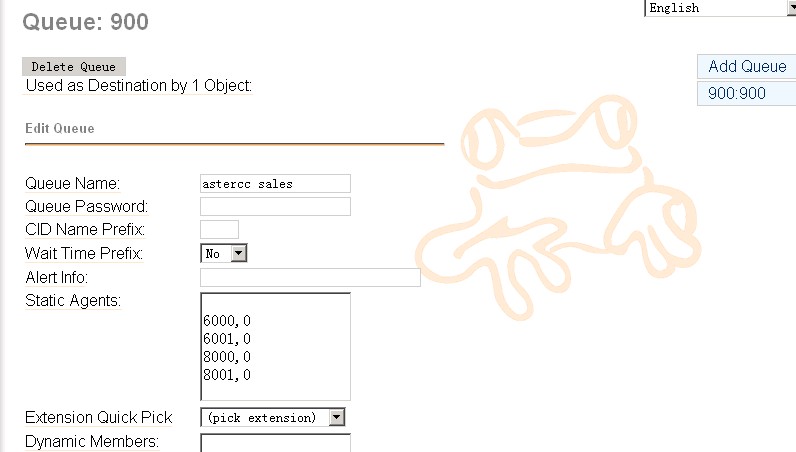
1. config a Queue in freepbx

usually you want to config a queue to resonpse customer if they want to reach some live agent, so we config a queue first

2. config an IVR in freepbx

2.1 first we will add some voice in the IVR, you’d like to use a recording software, just notice that in asterisk, it requires to use wav format and 16bit, 8000HZ mono

2.2 add a recording

you can either upload the recording you finished in your pc, or use a ext. in system to record a new one

2.3 add IVR

now queue and recording is ready, we could add the IVR

in announcement, we select the recording we just done, and also we added two options to accept customer input, when customer hits 1, he will go queue 900, and when hits 2, he will go to ext. 5001.

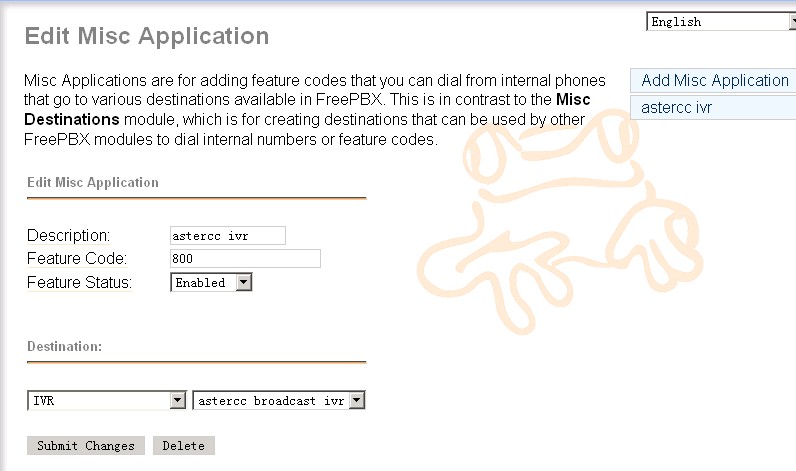
4. add misc

then we need add a misc so the dialer could reach the IVR

remember this feature code 800, we will use it when configing campaign in astercc, you could use some other code as you like, just make sure it’s unique in your freepbx

now we finished the job in freepbx, you’d like to dial 800 from any extension, it supposes to bring you to the IVR.

5. config the campaign in astercc

login as admin, and go to campaign, add a campaign as following

make sure in “Inexten” you put the same code as in “misc application”, and in “Queue number” put the same queue number as your freepbx queue

6. add agent user in astercrm

you’d like to add some account for your agents if you want them get a popup form when they start answer customer calls, go to “Extension” to add astercrm account for your agents, make sure the account “extension” match the ext. in your freepbx

7. start dialer and test agent

before start dialer, you’d like to check your astercc.conf

make sure this parameter is configed as

doublecheckcampaign = yes

then restart astercc daemons

/opt/asterisk/scripts/astercc/asterccd restart

ask your agent login and as admin go to dialer page, start the dialer

as an agent, he will get a popup when customer answered the call and hit 1 for queue

8. check report

you could go to dialedlist to check the campaign status

* to get a working freepbx and asterisk easily, you could choose  astercc box, elastix, pbxinaflash or trixbox

A Sonicwell Product · Also: CXMind AI · WCC Contact Center