

In July, 2007, we start a project, the aim is to provide a call center system for asterisk, which should be all web based and no rely on dialplan, also should have some simple CRM features. That’s how asterCRM came, we made it all open source and free to use so that it could grow faster. On 2007-08-08, we released the first version, 0.01beta, then 0.01, 0.03, 0.04 … it upgraded almost every month. At the same time, we’d like to provide a realtime billing solution for asterisk, then we made tow daemons running in linux, astercc and asterrc, astercc could catch live CDR from asterisk and asterrc could bill based rate and destination. We found this billing solution is perfect for hosted callshop, then we released asterCC on 2008-3-5, asterCC means the core of the system is the astercc daemon. After asterCC released, we found that we could get a much better performance and much more features if we use astercc damon in asterCRM, then we start integrate astercc daemon into asterCRM, then we released 0.0461 and 0.047beta, so that asterCRM could work based astercc daemon smoothly. So for now, both the billing solution and the call center solution need astercc daemon, then we decide rename them and package both into one software, we use asterCC as the package name, asterCRM as call center solution as it was, and use asterBilling as the software for realtime billing. asterCC ——asterCRM ——asterBilling asterCRM and asterBilling are both open source software, but the point is that you have to purchase license to get more simultaneous channels support in astercc daemon, by default it provide 5 free license so you can experience how asterCRM and asterBilling works.
For now asterCRM provides user two languages, English and Simplified Chinese, if you want to add a new language, follow this article you can make it yourself.
say you want to add German to astercrm, first go to astercrm/login.php and find the following lines:
<OPTION value=”en_US”>English</OPTION>
<OPTION value=”cn_ZH”>简体中文</OPTION>
we use de_GER for German so we add line then it looks like
<OPTION value=”en_US”>English</OPTION>
<OPTION value=”cn_ZH”>简体中文</OPTION>
<OPTION value=”de_GER”>Germany</OPTION>
save the file, then when you enter astercrm login page, you can see

select Germany and login, and we go to next to change words.
asterCRM language files locate in astercrm/include/language, where you can see files like
account_cn_ZH.php
account_en_US.php
portal_cn_ZH.php
portal_en_US.php
…
so cn_ZH means Simplified Chinese, for Germany one, you can copy account_cn_ZH.php as account_de_GER.php, copy portal_cn_ZH.php as portal_de_GER.php
dont copy from en_US file coz for some words we have English as default in pages, so it could be not integral in the language file, en_US files could be used as reference.
then open the copied file account_de_GER.php with some text editor, and start translate, so it looks like
<?
$add_account = “Ein neues Benutzerkonto wurde hinzugefügt”;
$update_rec = “Eintrag wurde aktualisiert”;
…
?>
save the file with format UTF-8 when you finish.
translate one by one …, not much but need some patient untill all finish.
The last thing, change all images, go to astercrm/skin/default, you can see folders like “images_cn”, “images_en”.. copy images_en as images_de then modify all images in the folder.
refresh your browser then you can see asterCRM with your translation!
asterCRM support goolge map, so you can add a map for your customer using this feature.
1. you need to apply a google api key
go to https://code.google.com/apis/maps/index.html
click “Sign up for a Google Maps API key.” on right

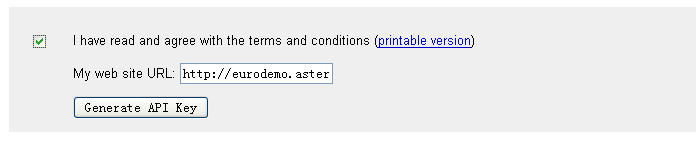
click the check box and enter your web site URL then button “Generate API Key”
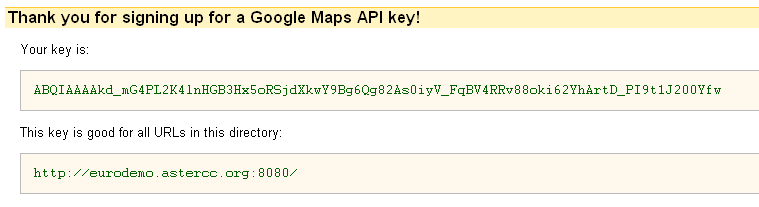
done! now you get the key for Google Maps API
astercctools is a daemon script provided in asterCC package, it has two features for now( version 0.01-081116): 1 get sip peer status astercctools will connect to your asterisk via AMI and execute command “sip show peers” then parse the result to table `sip_show_peers` in your mysql database. 2 get queue status astercctools will also execute command “show queue” then parse the result to mysql tables, it would put the result to table `queue_stats`,`queue_name`,`queue_agent`,`queue_caller` using astercctools in your asterisk application, you can read sip and queue status from mysql instead of connecting to asterisk each client seperately, so this would increace efficiency and stability. Read More
The scripts folder in asterCC package, it provides you several scripts, so here is what are they:
- astercc: the main daemon script in asterCC, it would run as a daemon when add “-d” parameter (astercc -d), astercc will connect to your asterisk via AMI, and catch all call events and put them into mysql database in realtime, so only astercc is running, all other functions would work.
- asterrc: a billing daemon, it would load rates to memory and when there’re new calls it would analyze the CDR based callerid and destnation then put the rate into database in realtime. It support three level billing, reseller, group, and customer. You need asterrc running when you want to bill your asterisk.
- astercclock: astercclock is used for billing as well, when there is no credit for customer/group/reseller/single call/callback it would cut the call, also if a callerid is blocked, the would also be hangup.
- astercctools: astercctools will put some useful data to database, like sip status and queue status
so you need astercc and astercctools running when it’s a call center application, and need astercc, asterrc, astercclock when it’s a billing application. In scripts directory, it also provide you some tools to control daemons above
- asterccd: start, stop or check astercc status(you can edit it to assign which daemon could be controled)
- asterccdaemon: a watch dog shell, put it to your cron job list so it would start astercc daemons when they dies(if it start by asterccd,then which daemon could be checked by it is same as which daemon could be controled by asterccd)
1. file format, astercc.conf need to be a linux format, so if we edit it under windows then upload, we may get a error.
2. mysql issue
astercc cant connect to mysql, need to check
/etc/hosts.deny
/etc/hosts.allow
and make sure your host have the permission to mysql server
for asterCRM 0.047beta
- Download asterCRM package from sf.net, unzip it and put all files/folders to your WEBroot folder
cd /usr/src wget https://nchc.dl.sourceforge.net/sourceforge/asterisk-crm/astercrm-0.047beta.zip unzip astercrm-0.047beta.zip mv ./astercrm-0.047beta /var/www/html/astercrm It is highly advised that the whole eventsdaemon directory be moved to a more secure location like /opt and out of the WEB root directory (in step 2)
- Create the directories and move eventsdaemon scripts:
in 0.047 beta, there’re several daemon scripts in the package:
- astercc, asterccd, asterccdaemon are for users who would use astercc to catch asterisk call records
- eventdog.sh, eventsdaemon.pl are for users who would use eventsdaemon to catch asterisk AMI events
Users could choose either method to use, dialer.pl is for scheduler calls, but it’s not fully tested in 0.047beta yet mkdir -p /opt/asterisk/scripts/eventsdaemon mv /var/www/html/astercrm/eventsdaemon/* /opt/asterisk/scripts/eventsdaemon chmod +x /opt/asterisk/scripts/eventsdaemon/eventsdaemon.pl chmod +x /opt/asterisk/scripts/eventsdaemon/eventdog.sh chmod +x /opt/asterisk/scripts/eventsdaemon/astercc chmod +x /opt/asterisk/scripts/eventsdaemon/asterccd chmod +x /opt/asterisk/scripts/eventsdaemon/asterccdaemon
- Create the MySQL database and tables, asterCRM requires mysql 4.1 or above
mysqladmin -uyourmysqluser -pyourmysqlpasswd create astercrm mysql -uyourmysqluser -pyourmysqlpasswd astercrm </var/www/html/astercrm/sql/astercrm.sql here we create the database named astercrm, you could use whatever db name you want use your configration to replace “yourmysqluser” and “yourmysqlpasswd”
- Update /etc/asterisk/manager.conf to enable Manager connections
[general] enabled = yes port = 5038 bindaddr = 0.0.0.0 ;displayconnects = yes ;the following line could be changed by yourself [asterccdaemon] secret = myasterccdaemon read = system,call,log,verbose,command,agent,user write = system,call,log,verbose,command,agent,user deny=0.0.0.0/0.0.0.0 ; only allow local access, if you want to run asterCRM on another server ; use your asterCRM ip to replace 127.0.0.1 or add a new line permit=127.0.0.1/255.255.255.0
- Modify astercrm.conf.php to fit your configuration
Mainly first you need set database connectoin parameters in section [database] so that you can login, then u can set other parameters via web pages.
- Start Asterisk and daemons you use
There are two daemon modes you can choose, eventsdaemon mode or astercc mode.
- using eventsdaemon.pl (eventtype = event in astercrm.conf.php)
open eventsdaemon.pl using some editor, then modify for database setting and AMI setting. try start the eventsdaemon.pl using /opt/asterisk/scripts/eventsdaemon/eventsdaemon.pl if you could read: “Message: Authentication accepted” congratulations, your eventsdaemon works well use ctrl + c to exit or else, please check your database/AMI configration in eventsdaemon.pl then start eventsdaemon as a daemon: /opt/asterisk/scripts/eventsdaemon/eventsdaemon.pl -d At some point, for better performance, it may be desirable to delete old events from database, you can check eventsdaemon.pl for parameter “log_life”, which is for such purpose. Also we provide a “watch dog”, it would help you restart eventsdaemon when it’s down, like asterisk restart. Add this line to your start-up file /opt/asterisk/scripts/eventsdaemon/eventdog.sh so that everytime your server start, eventsdaemon would be loaded
- using astercc (eventtype = curcdr in astercrm.conf.php)
modify /opt/asterisk/scripts/eventsdaemon/astercc.conf to fit your configuration try start astercc using /opt/asterisk/scripts/eventsdaemon/astercc if you could read like following line: “Connecting to mysql database on 127.0.0.1: Database connection successful. Connecting to asterisk on 127.0.0.1 port 5038: Asterisk socket connection successful. Check asterisk username & secret: Success Monitor Start: …(some log message)…” congratulations, your astercc works well then use ctrl + c to exit or else, please check your database/AMI configration in astercc.conf then start astercc as a daemon: /opt/asterisk/scripts/eventsdaemon/astercc -d Start up astercc daemons when system startup: Note: This option can only fit to redhat-release system. If you want astercc daemons to start automatically when you boot your machine, you need to : cp /opt/asterisk/scripts/eventsdaemon/asterccd /etc/rc.d/init.d chmod 755 /etc/rc.d/init.d/asterccd chkconfig –add asterccd Advice: Configure your astercc restart once everyday, it’s not necessary, but it ‘s good for your astercc operation. for example: you want to restart astercc at 0’clock everyday,just do the following line as root. crontab -e add a line: 0 0 * * * /etc/rc.d/init.d/asterccd restart end of this file, the first “0” figures minutes and the second “0” figures hours. a asterCC installation guid could be found here.
- Set file&folder access
set upload foler permission, so that you can upload your csv/excel files then import data chmod 777 /var/www/html/astercrm/upload set configratoin file permission, so that you can modify asterCRM perference via web chmod 777 /var/www/html/astercrm/astercrm.conf.php
- Test
open your browse, then enter this address https://localhost/astercrm or https://YOUR-WEB-SERVER-ADDRESS/astercrm login with admin/admin