

asterCRM support goolge map, so you can add a map for your customer using this feature.
1. you need to apply a google api key
go to https://code.google.com/apis/maps/index.html
click “Sign up for a Google Maps API key.” on right

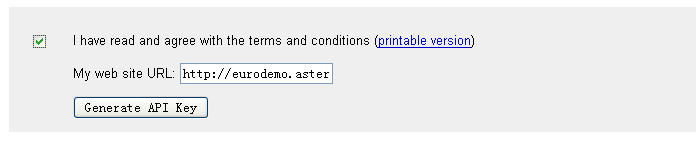
click the check box and enter your web site URL then button “Generate API Key”
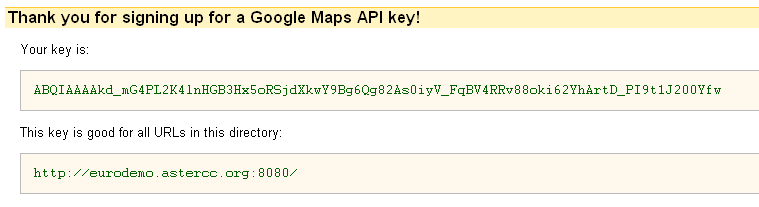
done! now you get the key for Google Maps API
so next, go to your asterCRM web site login as admin

click “Manage” go to management interface, and select preference

scroll the page untill you find the parameter for google api key

click button “Save” and you will get the prompt “Save success”
please make sure the astercrm config file “astercrm.conf.php” is writable
now go back to asterCRM and select a customer with detail address, click the link [Map] next to Address
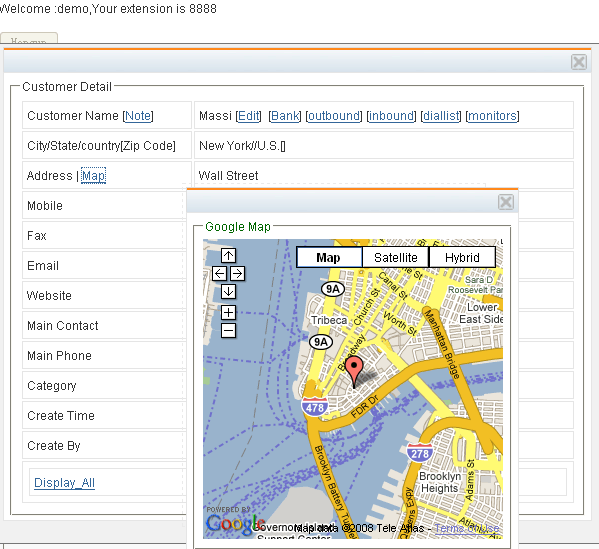
now enjoy 🙂
google maps feature requires a public IP on the asterCRM server??
no, just put the ip your agent uses