Tag

asterCRM Archives - Page 2 of 2 - Call Center Software Solution Provider | AsterCC

import data in asterCC

By | asterBilling, asterCRM | No Comments

You can import your data via web page in asterCC, in asterCRM, you can import customers, contacts and diallist, in asterBilling, you can import customerrate, grouprate and resellerrate, when import in asterCC, it will require you define how to map your data in excel/csv file to fileds in database.

say you have a rate table what to import as rate for callshop, filename is callshoprate.csv, the content is like

93,0,Afghanistan,0,1,14.5,60,1,2,15.03.08 18:22
9370,0,Afghanistan - Cellular,0,1,11,60,1,2,15.03.08 18:22
9379,0,Afghanistan - Cellular,0,1,11,60,1,2,15.03.08 18:22
35538,0,Albania - Cellular,0,1,10.5638,60,1,2,15.03.08 18:22

1. select your data file, asterCC support excel or csv format OR you can select a exsited file in your “upload” folderand then click “Upload”

then select callshoprate from the drop down menu on left

If this rate is for specific reseller/group, we can selec the reseller and group at the buttom, but here we leave is as “All”, means all groups in all reseller will use this rate by default

click “Import” to import the data, then u might get a Success prompt and see such page

if you only get 0 records from the message, go back and check if anything is wrong.

In astercrm, there’re some more options

Dynamic Agent mode with asterisk, FreePBX and asterCRM

By | asterCRM | No Comments

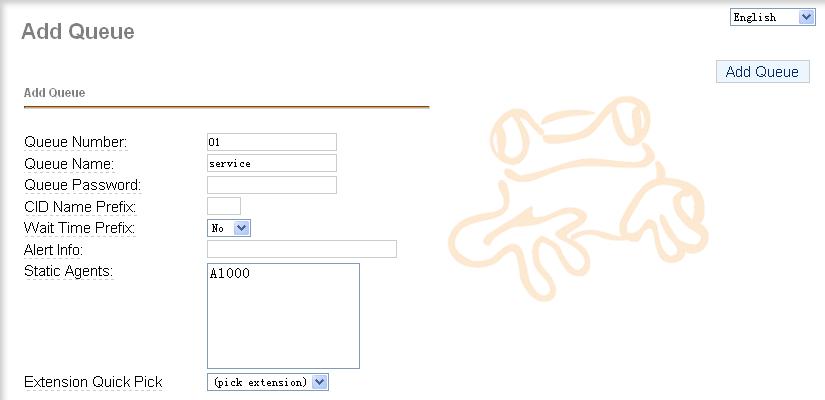
Dynamic Agent mode is very useful in a outbound call center, agents login to a queue and hear some music we definied in the queue, then predictive dailer start works, it dials customer numbers and once it get connected the dialer will redirect the call to the queue, and agent in the queue could hear a beep immediately then could start talking to the customer, it’s so quick that customer just think it’s a call from the agent. With asterCRM, agent could get customer information once the call get connected, here we’ll introduce how to set dynamic agent in freepbx and asterisk: First, we need to add some extensions and queues in FreePBX: add extensions: go to FreePBX extensions page, then we add a queue and choose a dynamic agent for it like following figure yes, if you want to add a dynamic agent for a queue, you should add a agent number with A in queue agent list, and we can notice that message from FreePBX. so we need to counfigure agent.conf in asterisk conf directory, here we add a dynamic agent which number is 1000, its passoword is 0000, name is Brad then we add a dialplan for agent login in extensions_custom.conf like following line: update the context of extension 8000 to “agent-test”. here, we had a queue which include a dynamic agnet, well then we need add a user in astercrm, go to the extension management page of astercrmand add a new extension and assign agent 1000 to him: Agnet start work: first the extension have to login as a agent to PBX, when 8000 dial “*789”, it would hear the prompt that require to enter the agent number and password to login as the agent, enter agent number 1000 and password 0000, it can login as agent 1000. login to asaterCRM by brad/1234, the asterCRM could pop-up if anyone call to Agent/1000 or extension 8000.

how to update asterCC license for your asterisk

By | asterBilling, asterCRM | 12 Comments

By default, astercc providers you 5 free simultaneous channels license, you can purchase more if need.

First, edit /opt/asterisk/scripts/astercc/astercc.conf which is in same folder with astercc daemons, go to section [licence], you can find three parameters there

[licence]
licenceto =
key =     (no this parameter in current version now)
channel = 5

change “channel” to the number of simultaneous channels you need, and “licence to” to the name of your organization, so now it looks like

[licence]
licenceto = my organization
key =
channel = 50

save and exit,  then execute astercc script, you should get things like

[dev01 astercc]# /opt/asterisk/scripts/astercc/astercc
Invalid key, please contact the administrator
identity = b0a5ebca13556ca9ca91813dd88dfgd9

now send this identitykey and all content in licence section (licenceto and channel) to astercc, we’ll send you back the licence key, then update your astercc.conf with the licence key, restart astercc & asterrc daemons. If no error message output, your astercc support more simultaneous channels now.

for the latest version, we start to use a license file named ‘license.astercc'(64 bits), so after u get the license file, upload it to the same folder with your astercc daemons, usually it’s in

/opt/asterisk/scripts/astercc/

then restart astercc daemons

/opt/asterisk/scripts/astercc/asterccd stop

/opt/asterisk/scripts/astercc/asterccd start

if everything is fine, it should give no errors, then the channels now in astercc is the value you put after channel =  in /opt/asterisk/scripts/astercc/astercc.conf

and use this command you can check if the license will expire some day

/opt/asterisk/scripts/astercc/astercc -h

0000-00-00 means never expire

and astercrm and asterbilling will share same license file, which means when you get the license, you can either use it for astercrm or asterbilling or both.

good luck!

History about asterCC, asterCRM and asterBilling

By | asterBilling, asterCRM | One Comment

In July, 2007, we start a project, the aim is to provide a call center system for asterisk, which should be all web based and no rely on dialplan, also should have some simple CRM features. That’s how asterCRM came, we made it all open source and free to use so that it could grow faster. On 2007-08-08, we released the first version, 0.01beta, then 0.01, 0.03, 0.04 … it upgraded almost every month. At the same time, we’d like to provide a realtime billing solution for asterisk, then we made tow daemons running in linux, astercc and asterrc, astercc could catch live CDR from asterisk and asterrc could bill based rate and destination. We found this billing solution is perfect for hosted callshop, then we released asterCC on 2008-3-5, asterCC means the core of the system is the astercc daemon. After asterCC released, we found that we could get a much better performance and much more features if we use astercc damon in asterCRM, then we start integrate astercc daemon into asterCRM, then we released 0.0461 and 0.047beta, so that asterCRM could work based astercc daemon smoothly. So for now, both the billing solution and the call center solution need astercc daemon, then we decide rename them and package both into one software, we use asterCC as the package name, asterCRM as call center solution as it was, and use asterBilling as the software for realtime billing. asterCC ——asterCRM ——asterBilling asterCRM and asterBilling are both open source software, but the point is that you have to purchase license to get more simultaneous channels support in astercc daemon, by default it provide 5 free license so you can experience how asterCRM and asterBilling works.

add language package for asterCRM & asterBilling

By | asterBilling, asterCRM | 2 Comments

For now asterCRM provides user two languages, English and Simplified Chinese, if you want to add a new language, follow this article you can make it yourself.

say you want to add German to astercrm, first go to astercrm/login.php and find the following lines:

<OPTION value=”en_US”>English</OPTION>
<OPTION value=”cn_ZH”>简体中文</OPTION>

we use de_GER for German so we add line then it looks like

<OPTION value=”en_US”>English</OPTION>
<OPTION value=”cn_ZH”>简体中文</OPTION>
<OPTION value=”de_GER”>Germany</OPTION>

save the file, then when you enter astercrm login page, you can see

select Germany and login, and we go to next to change words.

asterCRM language files locate in astercrm/include/language, where you can see files like

account_cn_ZH.php
account_en_US.php
portal_cn_ZH.php
portal_en_US.php

so cn_ZH means Simplified Chinese, for Germany one, you can copy account_cn_ZH.php as account_de_GER.php, copy portal_cn_ZH.php as portal_de_GER.php

dont copy from en_US file coz for some words we have English as default in pages, so it could be not integral in the language file, en_US files could be used as reference.

then open the copied file account_de_GER.php with some text editor, and start translate, so it looks like

<?
$add_account = “Ein neues Benutzerkonto wurde hinzugefügt”;
$update_rec = “Eintrag wurde aktualisiert”;

?>

save the file with format UTF-8 when you finish.

translate one by one …, not much but need some patient untill all finish.

The last thing, change all images, go to astercrm/skin/default, you can see folders like “images_cn”, “images_en”.. copy images_en as images_de then modify all images in the folder.

refresh your browser then you can see asterCRM with your translation!

add google map for your customer in asterCRM

By | asterCRM | 2 Comments

asterCRM support goolge map, so you can add a map for your customer using this feature.

1. you need to apply a google api key

go to https://code.google.com/apis/maps/index.html

click “Sign up for a Google Maps API key.” on right

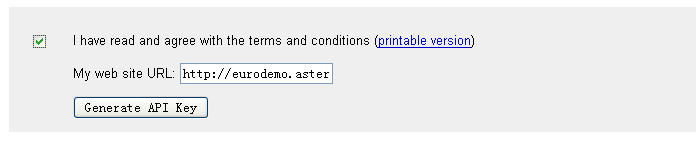
click the check box and enter your web site URL then button “Generate API Key”

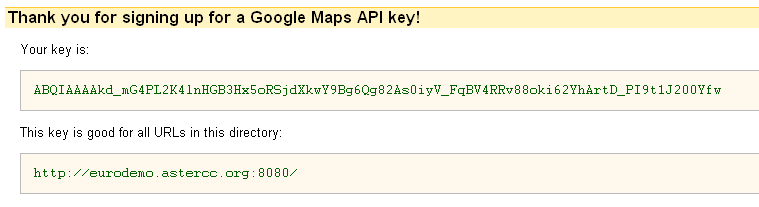
done! now you get the key for Google Maps API

Read More

simple asterCRM installation guide for asterisk

By | asterCRM | 32 Comments

for asterCRM 0.047beta

    1. Download asterCRM package from sf.net, unzip it and put all files/folders to your WEBroot folder

cd /usr/src wget https://nchc.dl.sourceforge.net/sourceforge/asterisk-crm/astercrm-0.047beta.zip unzip astercrm-0.047beta.zip mv ./astercrm-0.047beta /var/www/html/astercrm It is highly advised that the whole eventsdaemon directory be moved to a more secure location like /opt and out of the WEB root directory (in step 2)

    1. Create the directories and move eventsdaemon scripts:

in 0.047 beta, there’re several daemon scripts in the package:

  • astercc, asterccd, asterccdaemon are for users who would use astercc to catch asterisk call records
  • eventdog.sh, eventsdaemon.pl are for users who would use eventsdaemon to catch asterisk AMI events

Users could choose either method to use,  dialer.pl is for scheduler calls, but it’s not fully tested in 0.047beta yet mkdir -p /opt/asterisk/scripts/eventsdaemon mv /var/www/html/astercrm/eventsdaemon/* /opt/asterisk/scripts/eventsdaemon chmod +x /opt/asterisk/scripts/eventsdaemon/eventsdaemon.pl chmod +x /opt/asterisk/scripts/eventsdaemon/eventdog.sh chmod +x /opt/asterisk/scripts/eventsdaemon/astercc chmod +x /opt/asterisk/scripts/eventsdaemon/asterccd chmod +x /opt/asterisk/scripts/eventsdaemon/asterccdaemon

    1. Create the MySQL database and tables, asterCRM requires mysql 4.1 or above

mysqladmin -uyourmysqluser -pyourmysqlpasswd create astercrm mysql -uyourmysqluser -pyourmysqlpasswd astercrm </var/www/html/astercrm/sql/astercrm.sql here we create the database named astercrm, you could use whatever db name you want use your configration to replace “yourmysqluser” and “yourmysqlpasswd”

    1. Update /etc/asterisk/manager.conf to enable Manager connections
[general] enabled = yes port = 5038 bindaddr = 0.0.0.0 ;displayconnects = yes ;the following line could be changed by yourself [asterccdaemon] secret = myasterccdaemon read = system,call,log,verbose,command,agent,user write = system,call,log,verbose,command,agent,user deny=0.0.0.0/0.0.0.0 ; only allow local access, if you want to run asterCRM on another server ; use your asterCRM ip to replace 127.0.0.1 or add a new line permit=127.0.0.1/255.255.255.0

    1. Modify astercrm.conf.php to fit your configuration

Mainly first you need set database connectoin parameters in section [database] so that you can login, then u can set other parameters via web pages.

    1. Start Asterisk and daemons you use

There are two daemon modes you can choose, eventsdaemon mode or astercc mode.

  • using eventsdaemon.pl (eventtype = event in astercrm.conf.php)

open eventsdaemon.pl using some editor, then modify for database setting and AMI setting. try start the eventsdaemon.pl using /opt/asterisk/scripts/eventsdaemon/eventsdaemon.pl if you could read: “Message: Authentication accepted” congratulations, your eventsdaemon works well use ctrl + c to exit or else, please check your database/AMI configration in eventsdaemon.pl then start eventsdaemon as a daemon: /opt/asterisk/scripts/eventsdaemon/eventsdaemon.pl -d At some point, for better performance, it may be desirable to delete old events from database, you can check eventsdaemon.pl for parameter “log_life”, which is for such purpose. Also we provide a “watch dog”, it would help you restart eventsdaemon when it’s down, like asterisk restart. Add this line to your start-up file /opt/asterisk/scripts/eventsdaemon/eventdog.sh so that everytime your server start, eventsdaemon would be loaded

  • using astercc (eventtype = curcdr in astercrm.conf.php)

modify /opt/asterisk/scripts/eventsdaemon/astercc.conf to fit your configuration try start astercc using /opt/asterisk/scripts/eventsdaemon/astercc if you could read like following line: “Connecting to mysql database on 127.0.0.1: Database connection successful. Connecting to asterisk on 127.0.0.1 port 5038: Asterisk socket connection successful. Check asterisk username & secret: Success Monitor Start: …(some log message)…” congratulations, your astercc works well then use ctrl + c to exit or else, please check your database/AMI configration in astercc.conf then start astercc as a daemon: /opt/asterisk/scripts/eventsdaemon/astercc -d Start up astercc daemons when system startup: Note: This option can only fit to redhat-release system. If you want astercc daemons to start automatically when you boot your machine, you need to : cp /opt/asterisk/scripts/eventsdaemon/asterccd /etc/rc.d/init.d chmod 755 /etc/rc.d/init.d/asterccd chkconfig –add asterccd Advice: Configure your astercc restart once everyday, it’s not necessary, but it ‘s good for your astercc operation. for example: you want to restart astercc at 0’clock everyday,just do the following line as root. crontab -e add a line: 0 0 * * * /etc/rc.d/init.d/asterccd restart end of this file, the first “0” figures minutes and the second “0” figures hours. a asterCC installation guid could be found here.

    1. Set file&folder access

set upload foler permission, so that you can upload your csv/excel files then import data chmod 777 /var/www/html/astercrm/upload set configratoin file permission, so that you can modify asterCRM perference via web chmod 777 /var/www/html/astercrm/astercrm.conf.php

    1. Test

open your browse, then enter this address https://localhost/astercrm or https://YOUR-WEB-SERVER-ADDRESS/astercrm login with admin/admin

A Sonicwell Product · Also: CXMind AI · WCC Contact Center