Tag

predictive dialer Archives - Page 2 of 2 - Call Center Software Solution Provider | AsterCC

tutorial: use astercc,freepbx and asterisk to build a broadcasting system with IVR and Queue agents

By | asterCRM | No Comments

the most feature in astercc is the predictive dialer, using the dialer you could improve the work efficiency. In this tutorial, I will introduce how to setup a dialer with a pre-configed IVR:  when dialer start work, customers will hear a IVR which you configed in Freepbx, so we could also config in the IVR to accept customer input, and we can forward to an new IVR or agents in a queue.

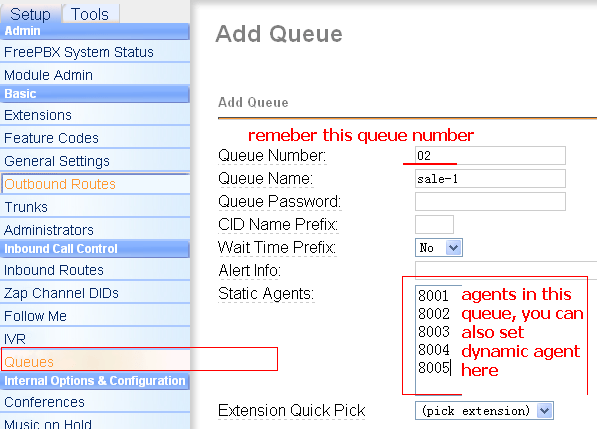
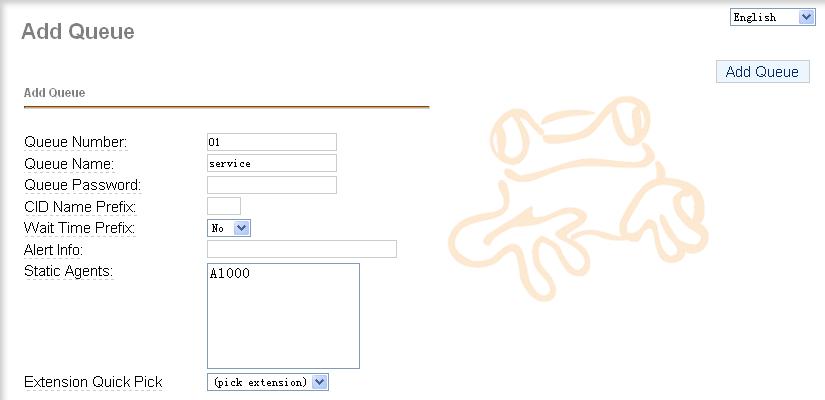
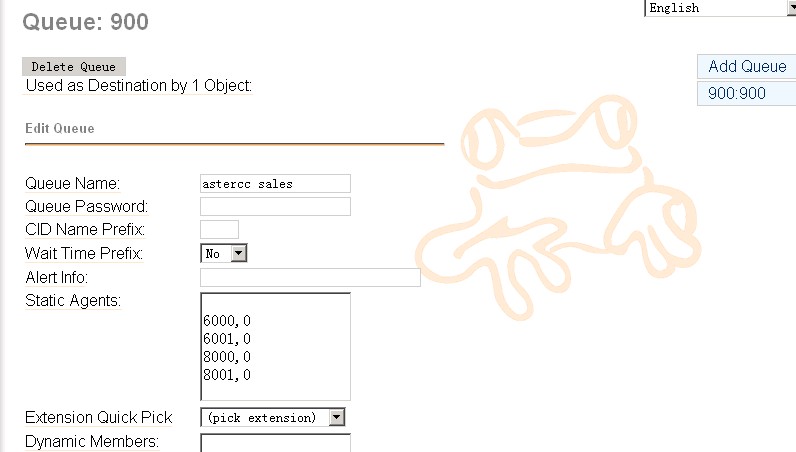
1. config a Queue in freepbx

usually you want to config a queue to resonpse customer if they want to reach some live agent, so we config a queue first
2. config an IVR in freepbx

2.1 first we will add some voice in the IVR, you’d like to use a recording software, just notice that in asterisk, it requires to use wav format and 16bit, 8000HZ mono

2.2 add a recording

you can either upload the recording you finished in your pc, or use a ext. in system to record a new one

2.3 add IVR

now queue and recording is ready, we could add the IVR

in announcement, we select the recording we just done, and also we added two options to accept customer input, when customer hits 1, he will go queue 900, and when hits 2, he will go to ext. 5001.

4. add misc

then we need add a misc so the dialer could reach the IVR
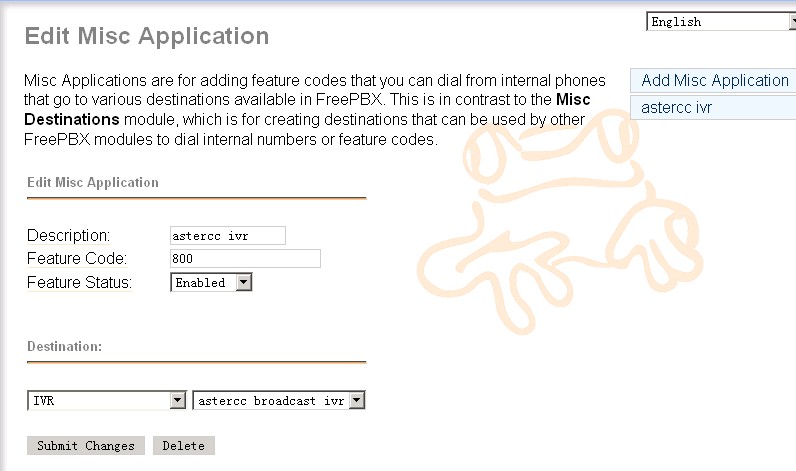
remember this feature code 800, we will use it when configing campaign in astercc, you could use some other code as you like, just make sure it’s unique in your freepbx

now we finished the job in freepbx, you’d like to dial 800 from any extension, it supposes to bring you to the IVR.

5. config the campaign in astercc

login as admin, and go to campaign, add a campaign as following

make sure in “Inexten” you put the same code as in “misc application”, and in “Queue number” put the same queue number as your freepbx queue

6. add agent user in astercrm

you’d like to add some account for your agents if you want them get a popup form when they start answer customer calls, go to “Extension” to add astercrm account for your agents, make sure the account “extension” match the ext. in your freepbx

7. start dialer and test agent

before start dialer, you’d like to check your astercc.conf

make sure this parameter is configed as

doublecheckcampaign = yes

then restart astercc daemons

/opt/asterisk/scripts/astercc/asterccd restart

ask your agent login and as admin go to dialer page, start the dialer

as an agent, he will get a popup when customer answered the call and hit 1 for queue

8. check report

you could go to dialedlist to check the campaign status

* to get a working freepbx and asterisk easily, you could choose  astercc box, elastix, pbxinaflash or trixbox

dialer, queue and popup for asterisk callcenter(freepbx,trixbox,elastix,pbxinflash) with asterCRM

By | asterCRM | 16 Comments

The latest asterCRM has a great improvement in dialer, and with asterCRM, it’s quite easy to build a call center. Here’s a how-to for a outbound call center with Freepbx and astercrm. Following by this how-to, you can creat such a solution:

asterCRM dialer will call the numbers in your diallist, and when the call is connected, it would be redirect to a queue, where your agent will answer the call and talk the customers,  they can do survey , sales or whatever you want.

* freepbx is a web gui for asterisk which is widely used in asterisk applications, like trixbox, elastix, pbx in flash …

  • install freepbx

For freepbx installation, you can read the installation document from freepbx website https://www.freepbx.org. If you are using trixbox, elastix or pbx in flash, then u can skip this, it have freepbx build in already.

  • install asterCRM, make sure asterCRM daemons (astercc and astercctools) are running

for asterCRM installation, go and check asterCRM wiki:

https://wiki.astercrm.org/index.php/AsterCRM_Installation#Using_the_install_script

  • add extensions for your agents and set a queue to receive calls from asterCRM dialer

login into freepbx, start add extensions for your agent

freepbx-add-extension

then add a queue

freepbx-queue

  • set group/user in asterCRM

next login asterCRM as admin, create group “outbound sales” and add extensions for agents you created above, go wiki for more detail

https://wiki.astercrm.org/index.php/Create_Group

https://wiki.astercrm.org/index.php/Create_Extension

make sure “Extension” matched “Outbound CID”  or “Extension”(if outbound cid is blank) in freepbx

so now all your agents should get a username/password for asterCRM.

Read More

Dynamic Agent mode with asterisk, FreePBX and asterCRM

By | asterCRM | No Comments

Dynamic Agent mode is very useful in a outbound call center, agents login to a queue and hear some music we definied in the queue, then predictive dailer start works, it dials customer numbers and once it get connected the dialer will redirect the call to the queue, and agent in the queue could hear a beep immediately then could start talking to the customer, it’s so quick that customer just think it’s a call from the agent. With asterCRM, agent could get customer information once the call get connected, here we’ll introduce how to set dynamic agent in freepbx and asterisk: First, we need to add some extensions and queues in FreePBX: add extensions: go to FreePBX extensions page, then we add a queue and choose a dynamic agent for it like following figure yes, if you want to add a dynamic agent for a queue, you should add a agent number with A in queue agent list, and we can notice that message from FreePBX. so we need to counfigure agent.conf in asterisk conf directory, here we add a dynamic agent which number is 1000, its passoword is 0000, name is Brad then we add a dialplan for agent login in extensions_custom.conf like following line: update the context of extension 8000 to “agent-test”. here, we had a queue which include a dynamic agnet, well then we need add a user in astercrm, go to the extension management page of astercrmand add a new extension and assign agent 1000 to him: Agnet start work: first the extension have to login as a agent to PBX, when 8000 dial “*789”, it would hear the prompt that require to enter the agent number and password to login as the agent, enter agent number 1000 and password 0000, it can login as agent 1000. login to asaterCRM by brad/1234, the asterCRM could pop-up if anyone call to Agent/1000 or extension 8000.

A Sonicwell Product · Also: CXMind AI · WCC Contact Center